Telegram export guide

How to export Telegram chats as JSON

Use Telegram Desktop to export Personal chats in Machine-readable JSON format. Then upload result.json and choose the one conversation you want to analyze. These screenshots walk you through the desktop settings.

Before you start

Install or open Telegram Desktop on a computer. Keep only Personal chats selected and choose Machine-readable JSON. You do not need to download attachments or share your Telegram password with Brutal Verdict.

Screenshots: Windows desktop app. Menu names and placement can vary by version.

Export your Telegram chat history, step by step

  1. Step 1

    Open Telegram Desktop

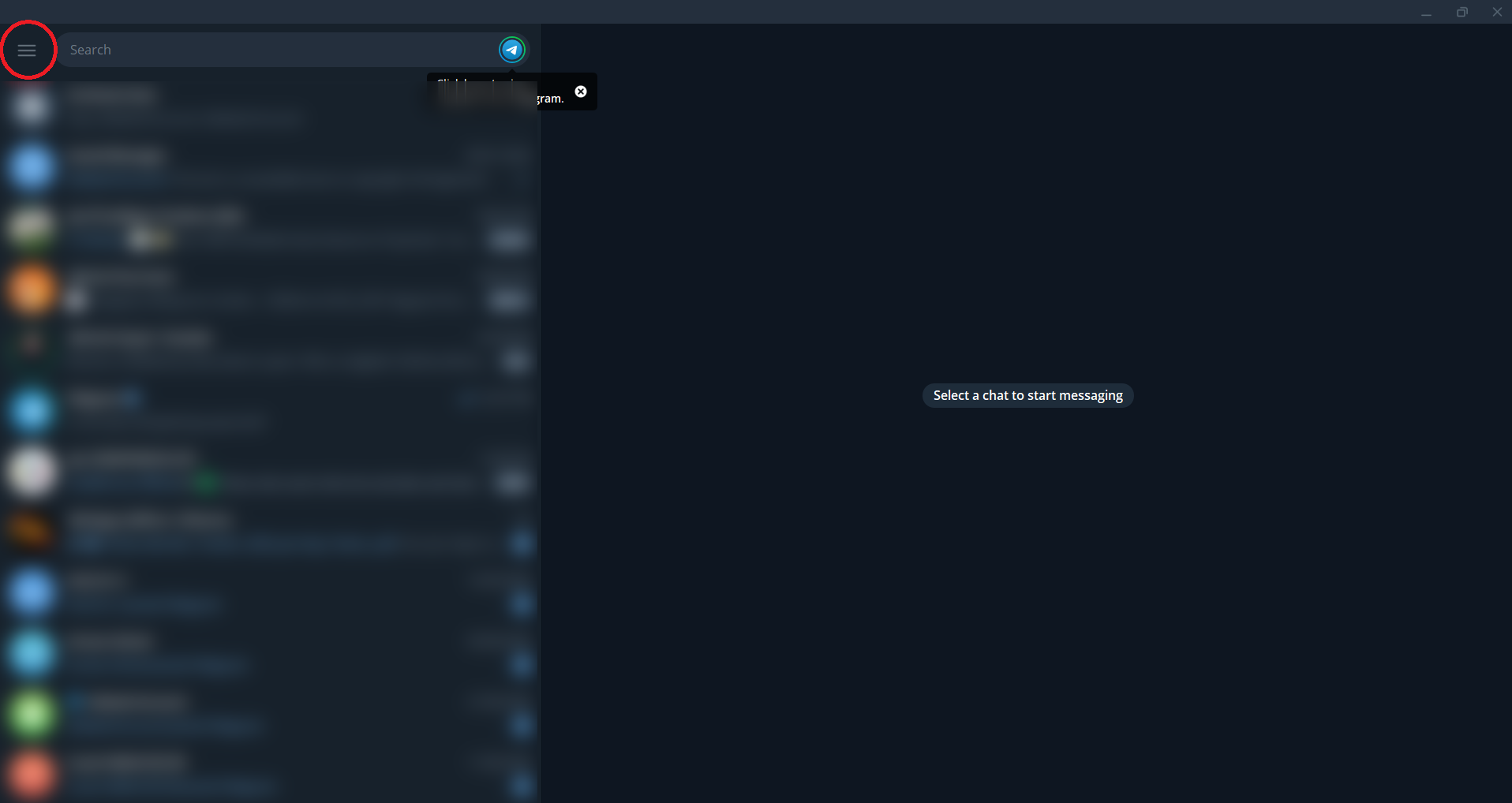
    Use Telegram Desktop on your computer, then open the three-line menu in the top-left corner. These screenshots show the Windows desktop app.

    Telegram Desktop: Open Telegram Desktop
    Open full screenshot
  2. Step 2

    Open Settings

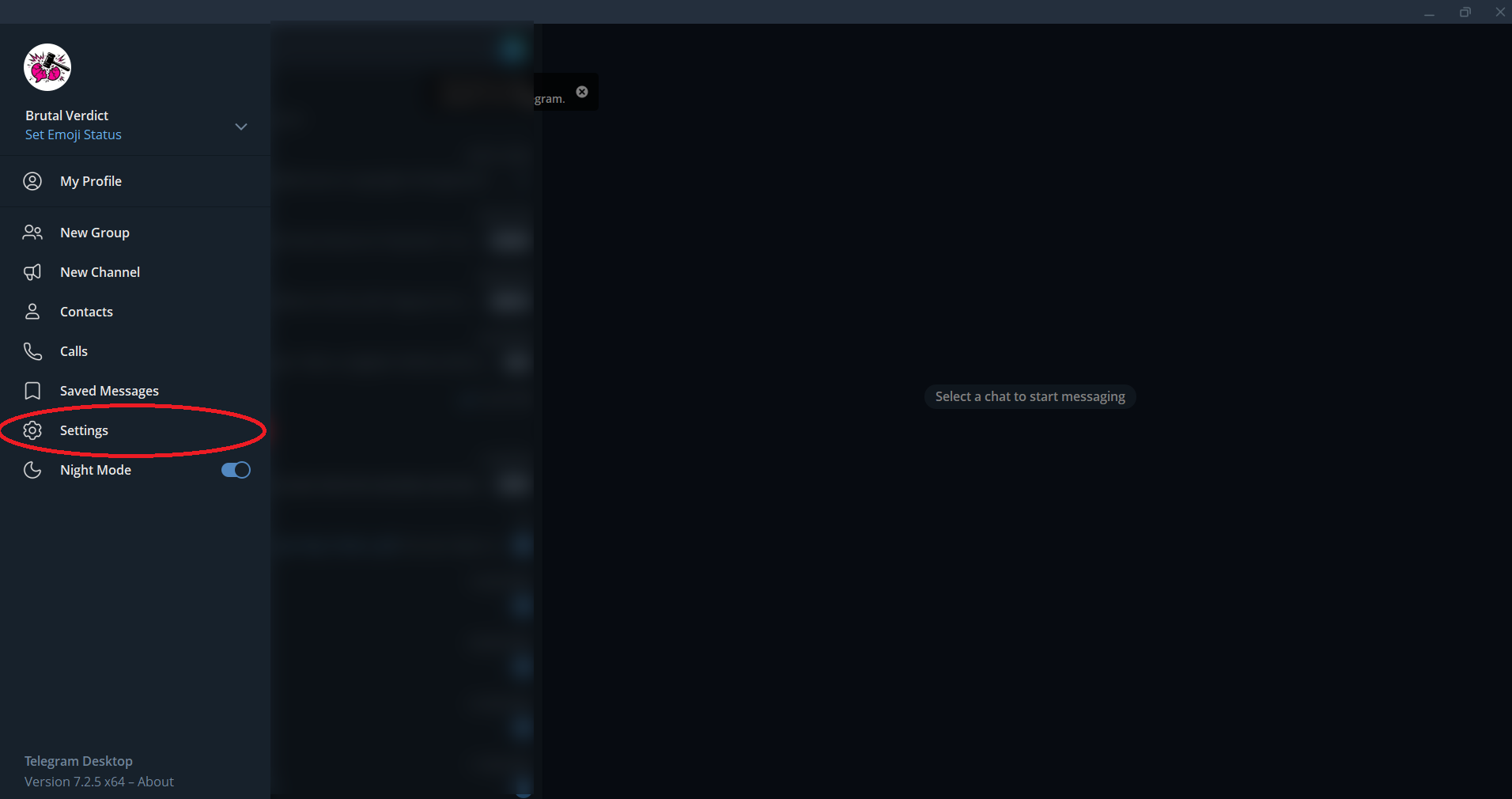
    Choose Settings from the menu.

    Telegram Desktop: Open Settings
    Open full screenshot
  3. Step 3

    Choose Advanced

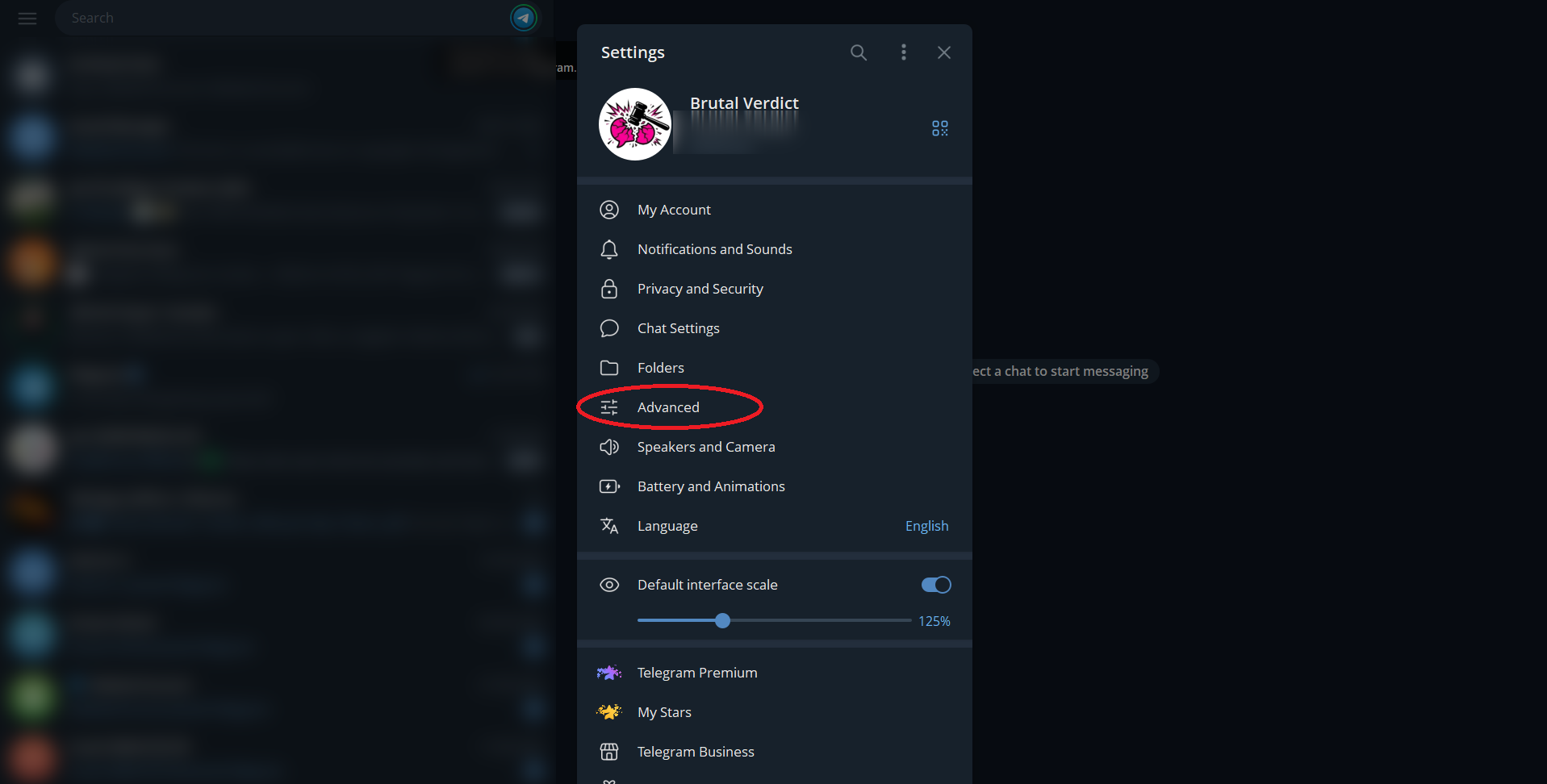
    In Settings, open Advanced. If this option is missing, check that you are using Telegram Desktop, not Telegram Web or a different Telegram app.

    Telegram Desktop: Choose Advanced
    Open full screenshot
  4. Step 4

    Select Export Telegram data

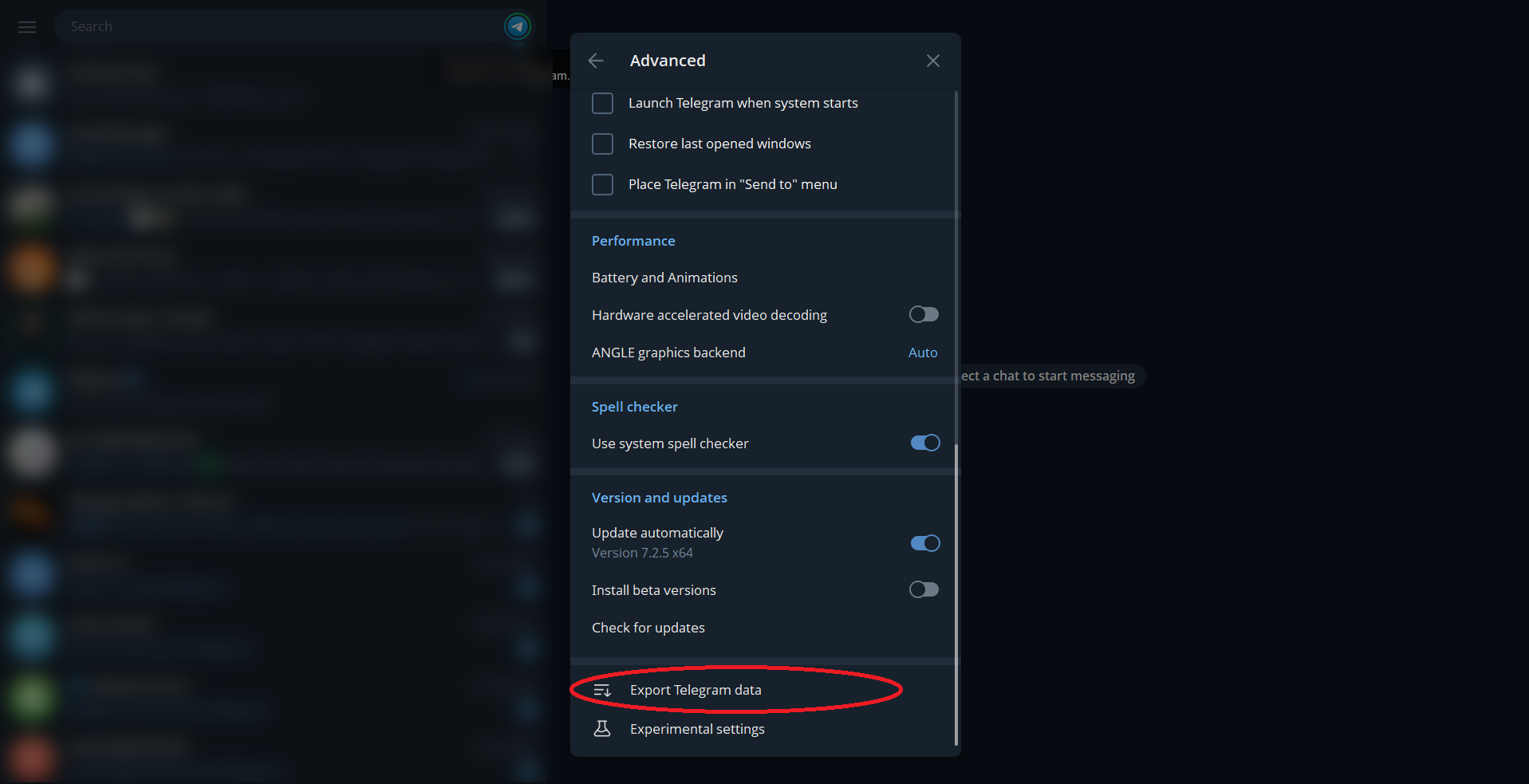
    Scroll down in Advanced and choose Export Telegram data.

    Telegram Desktop: Select Export Telegram data
    Open full screenshot
  5. Step 5

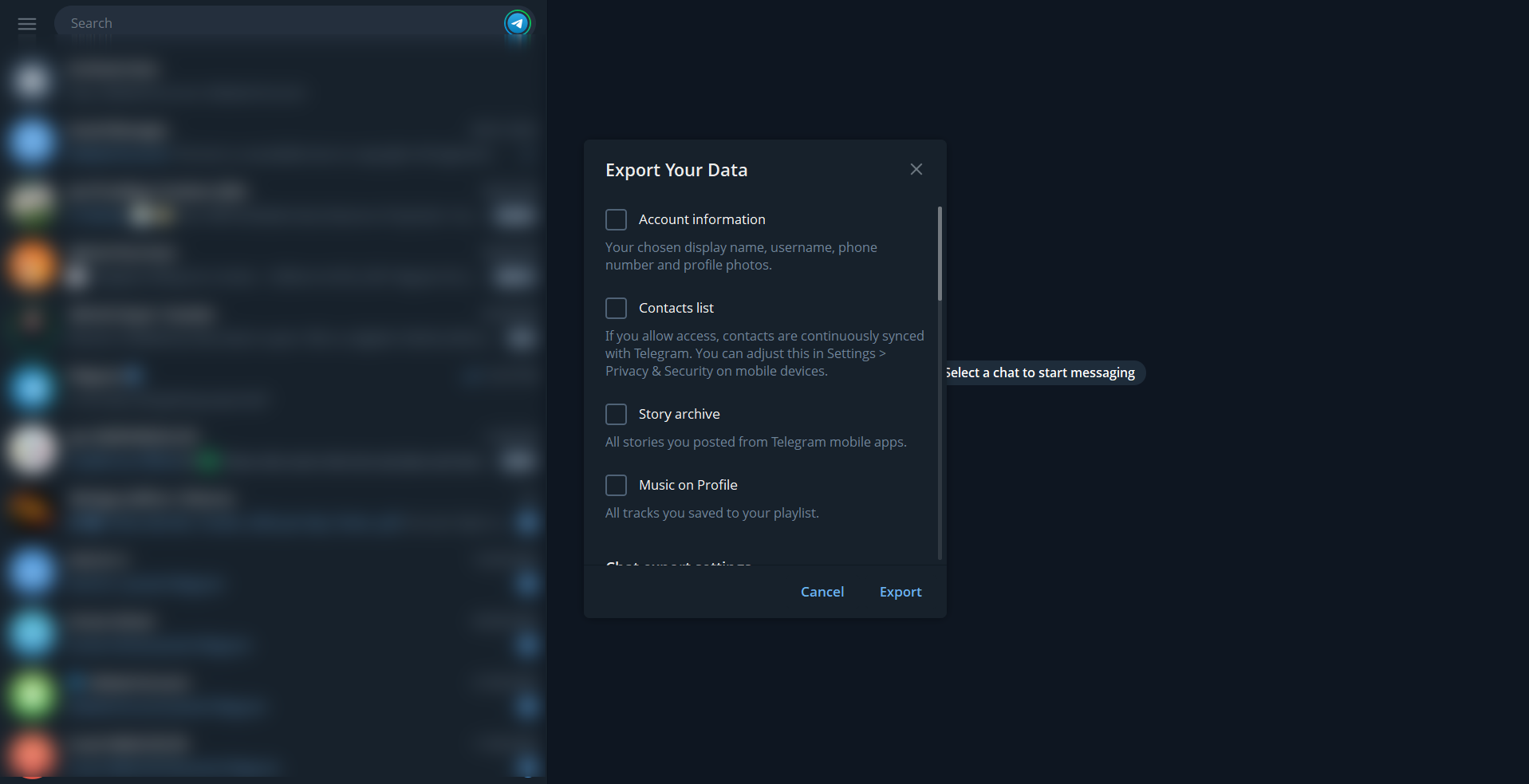
    Leave unrelated information unchecked

    You do not need Account information, Contacts list, Story archive or other account data for chat analysis. Scroll down to Chat export settings.

    Telegram Desktop: Leave unrelated information unchecked
    Open full screenshot
  6. Step 6

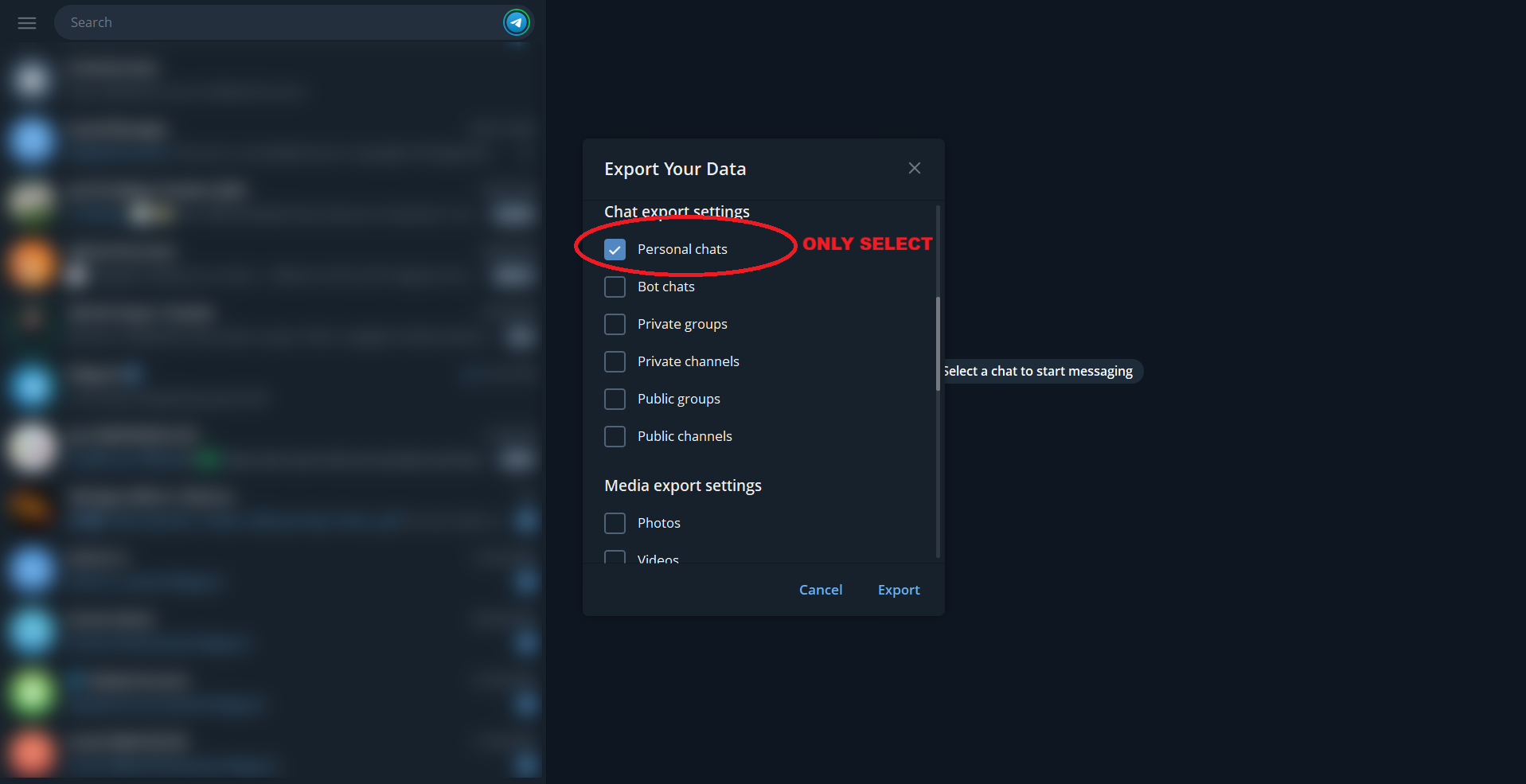
    Select Personal chats only

    Check Personal chats. Leave bot chats, groups and channels unchecked. Photos, videos and other media downloads are optional; Brutal Verdict needs the JSON file, not the attached files.

    Telegram Desktop: Select Personal chats only
    Open full screenshot
  7. Step 7

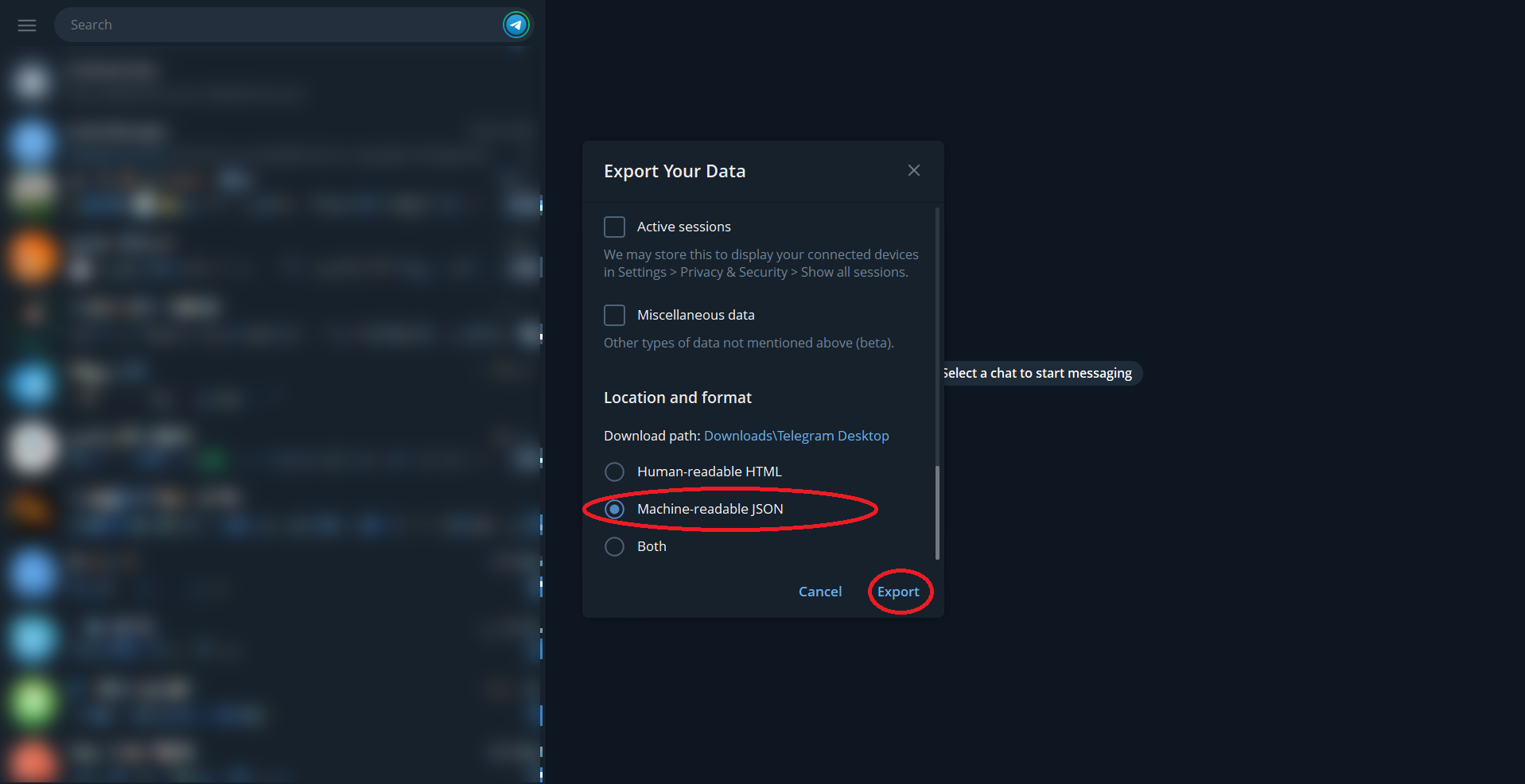
    Choose Machine-readable JSON and export

    Scroll to Location and format. Note the download folder, select Machine-readable JSON, then click Export. Keep Telegram open until the export finishes.

    Telegram Desktop: Choose Machine-readable JSON and export
    Open full screenshot
  8. Step 8

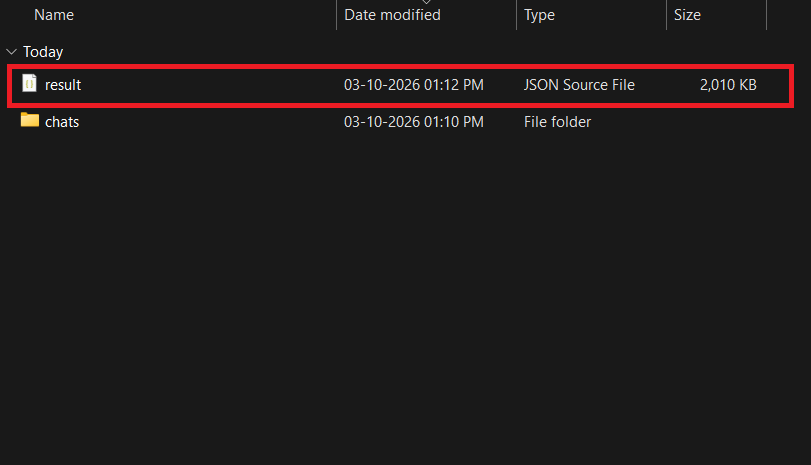
    Upload result.json and choose your chat

    Open the completed export folder and find result.json, not the chats folder. Windows may show it as result with the type JSON Source File when file extensions are hidden. Upload that file to Brutal Verdict, then search the conversation list and choose one chat. Analysis starts only after you choose; the other conversations are discarded.

    Windows File Explorer: result JSON Source File highlighted above the chats folder
    Open full screenshot
Open the Telegram chat analyzer →

Export options and new-session waiting rules are documented in Telegram’s official export instructions.

Only result.json is needed

You do not need to upload your export folder, account details, contact list or media files. Keep the original export on your device and choose the JSON file when you open the analyzer.

Brutal Verdict lists eligible conversations by message count. You can search by name before selecting; analysis begins only after that selection, and the other conversations are discarded.

Exported the wrong format?

If you have an HTML page but no JSON file, repeat the export with Machine-readable JSON selected. If you selected Both, look for the JSON file alongside the human-readable export.

Wait until Telegram says the export is complete before choosing the file. An incomplete export may not contain readable JSON or all of the expected messages.

Export one chat instead

Telegram’s official documentation also describes exporting an individual conversation: open that chat, open its three-dot menu and choose Export chat history. Select JSON if the option is available in your desktop app.

This is useful when you already know which conversation you want. Otherwise, the Personal chats export in the screenshots works with Brutal Verdict’s conversation picker.

Keep expectations clear

The current analyzer supports two-person personal chats, not Telegram groups or channels. It cannot restore messages missing from your export or analyze the contents of attachments.

Raw messages are processed locally in your browser. If you choose optional AI Insights, it receives aggregate stats rather than message text, captions or links.

Common questions

FAQ

Where is Export Telegram data?

In Telegram Desktop, open the three-line menu, choose Settings, then Advanced. Scroll down and select Export Telegram data. Menu placement may vary between versions; the screenshots show Telegram Desktop on Windows.

Which export format should I choose?

Choose Machine-readable JSON. Human-readable HTML is for browsing messages, but is not the format Brutal Verdict analyzes. If you chose Both, select the JSON file from the completed export.

Where do I find result.json?

Open the folder you selected under Location and format. For the account export shown here, look inside the completed DataExport folder for result.json. Upload the file itself, not the folder or a media subfolder.

Do I need to export photos and videos?

No. Brutal Verdict reads the JSON message data and available metadata, not the attached photo, video or audio files. Leave media downloads unchecked to reduce export size. Media counts depend on what Telegram includes in the JSON.

Can I export just one Telegram chat?

Yes. Telegram Desktop also offers Export chat history from a conversation’s three-dot menu where available. Choose JSON there. The main guide uses Personal chats because Brutal Verdict lets you select a single conversation from a full export.

Why does Telegram make me wait before exporting?

After signing in on a new desktop session, Telegram may require a 24-hour wait or confirmation from another signed-in device. Follow Telegram’s export prompt, then retry when it allows the download. Export preparation time also varies with the amount of data.

Why is a conversation missing from the picker?

Only supported personal chats with usable text from two participants can be compared. Bot chats, groups, channels, Saved Messages, empty chats and one-sided chats are excluded. The picker reports how many chats do not have enough two-person data.

Does the guide work on Mac, iPhone or Android?

The screenshots show Windows. Use Telegram Desktop from desktop.telegram.org on a computer for this JSON workflow; another Telegram app may have different menus. If export options are missing on your phone, in Telegram Web or in a Mac-specific app, check the desktop app instead.

Keep exploring

Ready for the actual verdict?

Upload an export. Raw chat messages stay in your browser during local analysis.

Analyze your Telegram export